tedEMS - Entertainments Management System
Sensatori and Holiday Village Sports Supervisor User Guide - V1
What is tedEMS?
tedEMS is the new artiste, entertainment and activity reporting and management system for Sensatori and Holiday Village resorts.
It completely replaces the previous tedBase system and includes many new features and improvements.
The key differences between tedbase and tedEMS are:
Where do I find tedEMS?
Using your webbrowser navigate to https://www.tedems.com
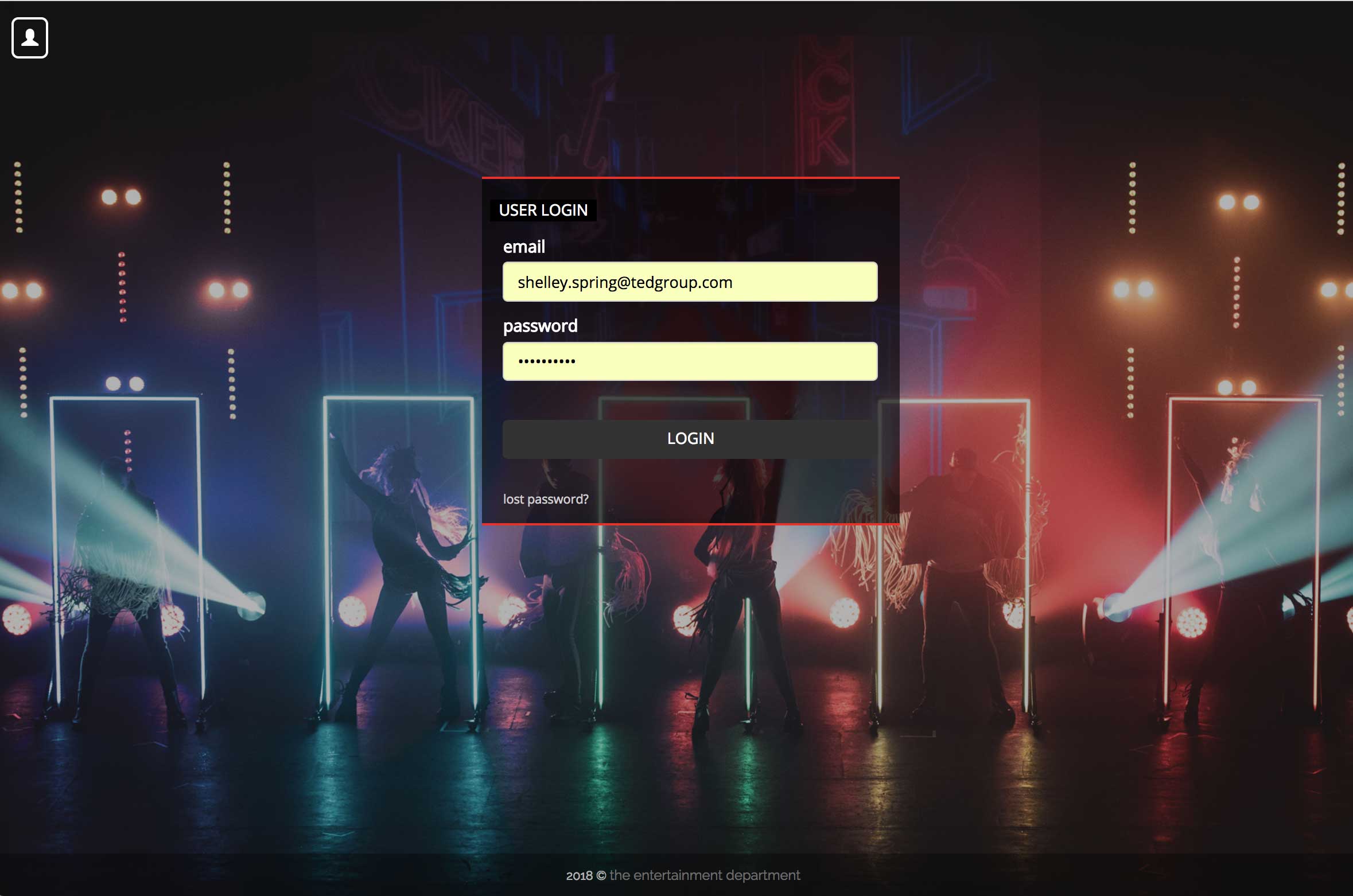
Click on the user icon (or anywhere on the page) to bring up the login box.
Use your login email address and password that has been sent to you.
If you have forgotten your password then the 'forgot password' button will email your current password.
If you still have problems logging on then contact tedOffice.
Finding your way around
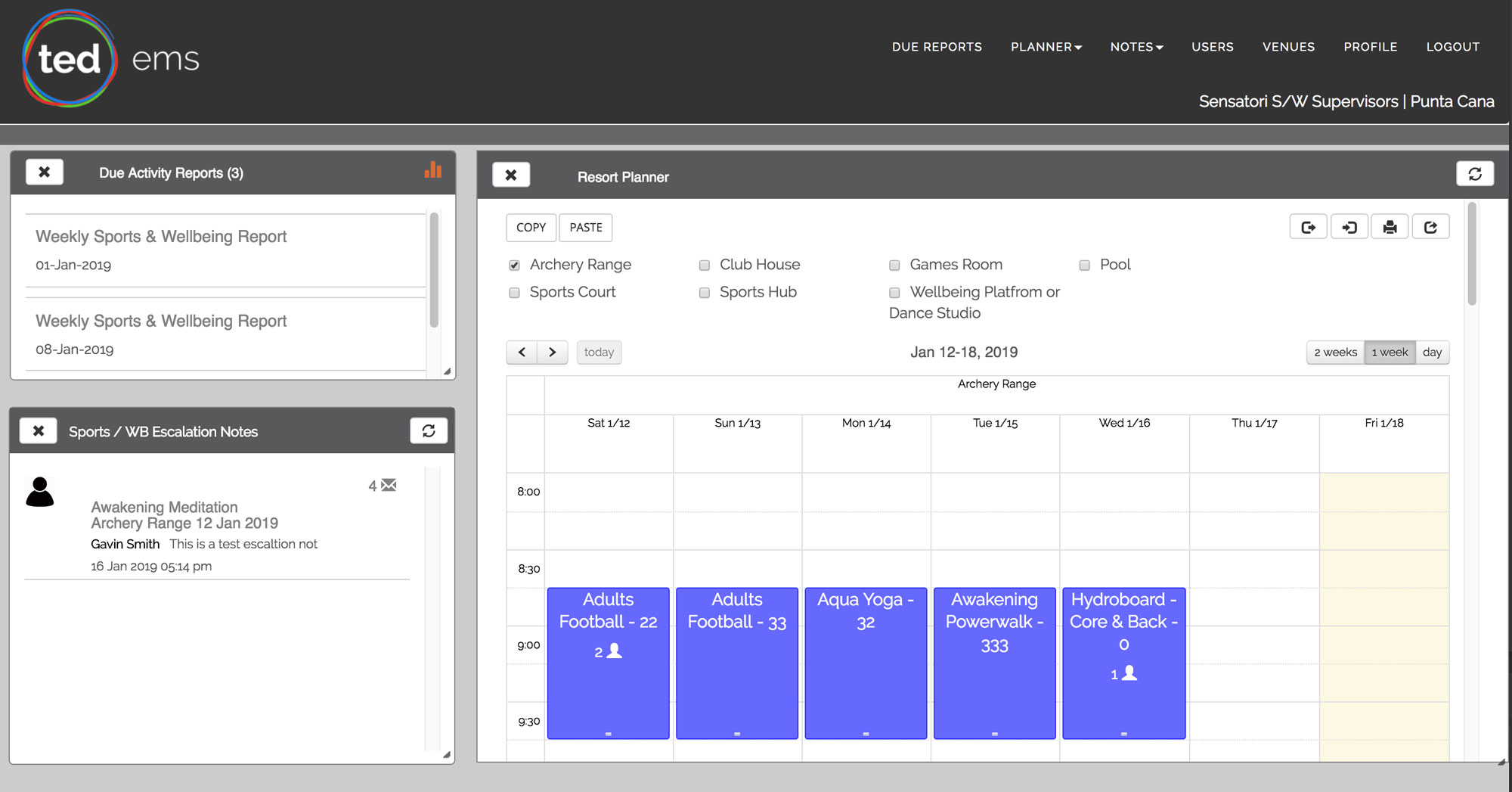
Dashboard
The new dashboard for tedEMS now contains draggable and resizable modules for all the tasks you may need to do.
You can display multiple modules at the same time and their position is remembered if you leave and return to the site
Due Reports
Planner
Notes
Users
Venues
Profile
Logout
Getting help
If you need help with using the system or need to report a fault you have seen - email rod.balgarnie@tedgroup.com
We have designed tedEMS to be easy to use and provde you with the necessary tools to assist in the managing of staff and resort activities, as well as being able to effectively report back to tedOffice. It is your system and let us know if you have any suggestions to improve tedEMS.
Reports
Artiste reports
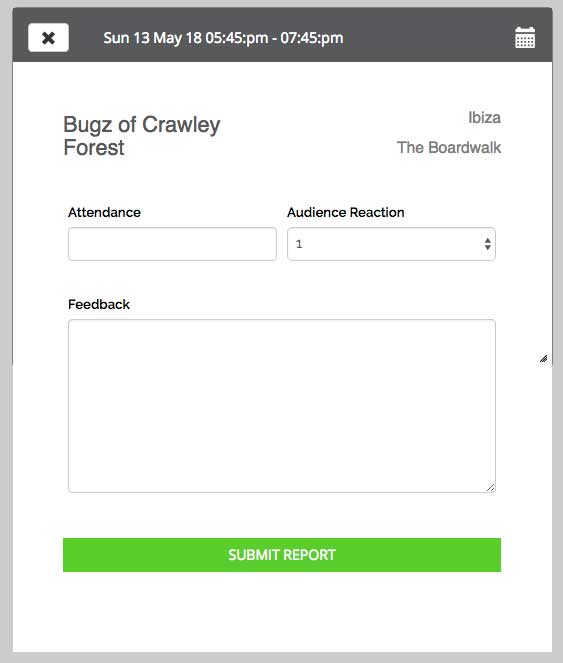
Everytime an artiste performs at your resort it is necessary to complete a performance feedback report. This consists of 4 scores out of 10 and a comments text box. Any score for 'Entertainment Manager Reaction' that is less than 5 will automatically be escalated to tedAgency and ted management for immediate investigation.
If for any reason the artiste does not match the actual artiste performing then please don't complete the report, but contact tedAgency and they will change to the correct artiste or remove from your bookings.
Artiste reports can be submitted by either selecting an event from the Artistes Due Reports module, artiste event from the Visiting Artistes Planner or Resort Planner. If a report is due, then you will see the Create Report button which will display the artiste feedback report form to be completed.
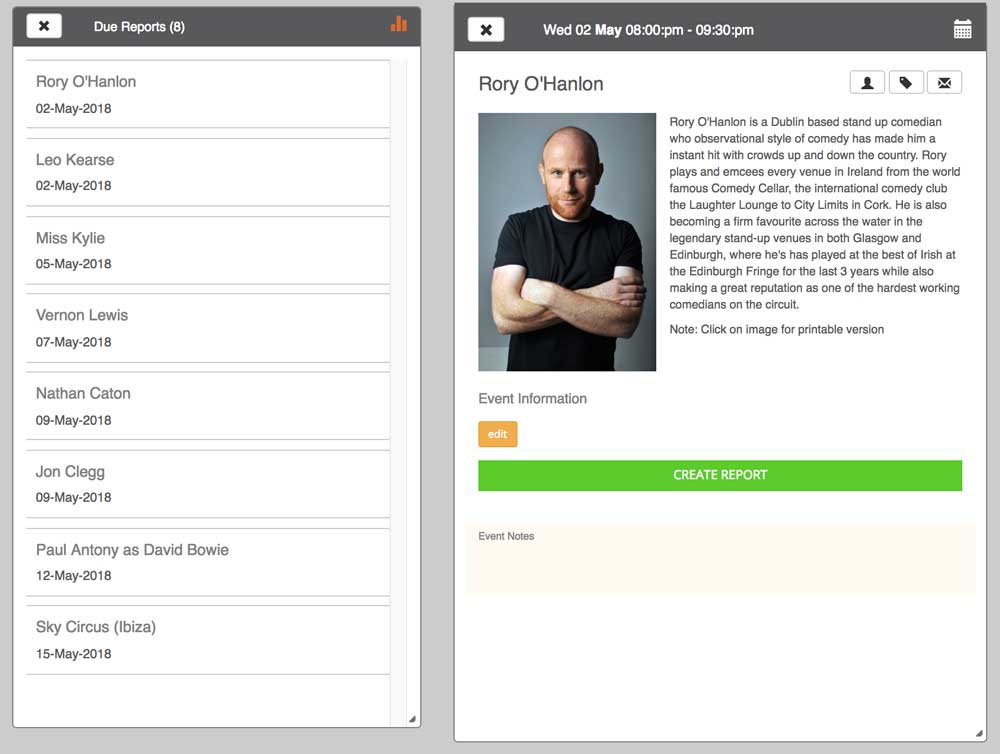
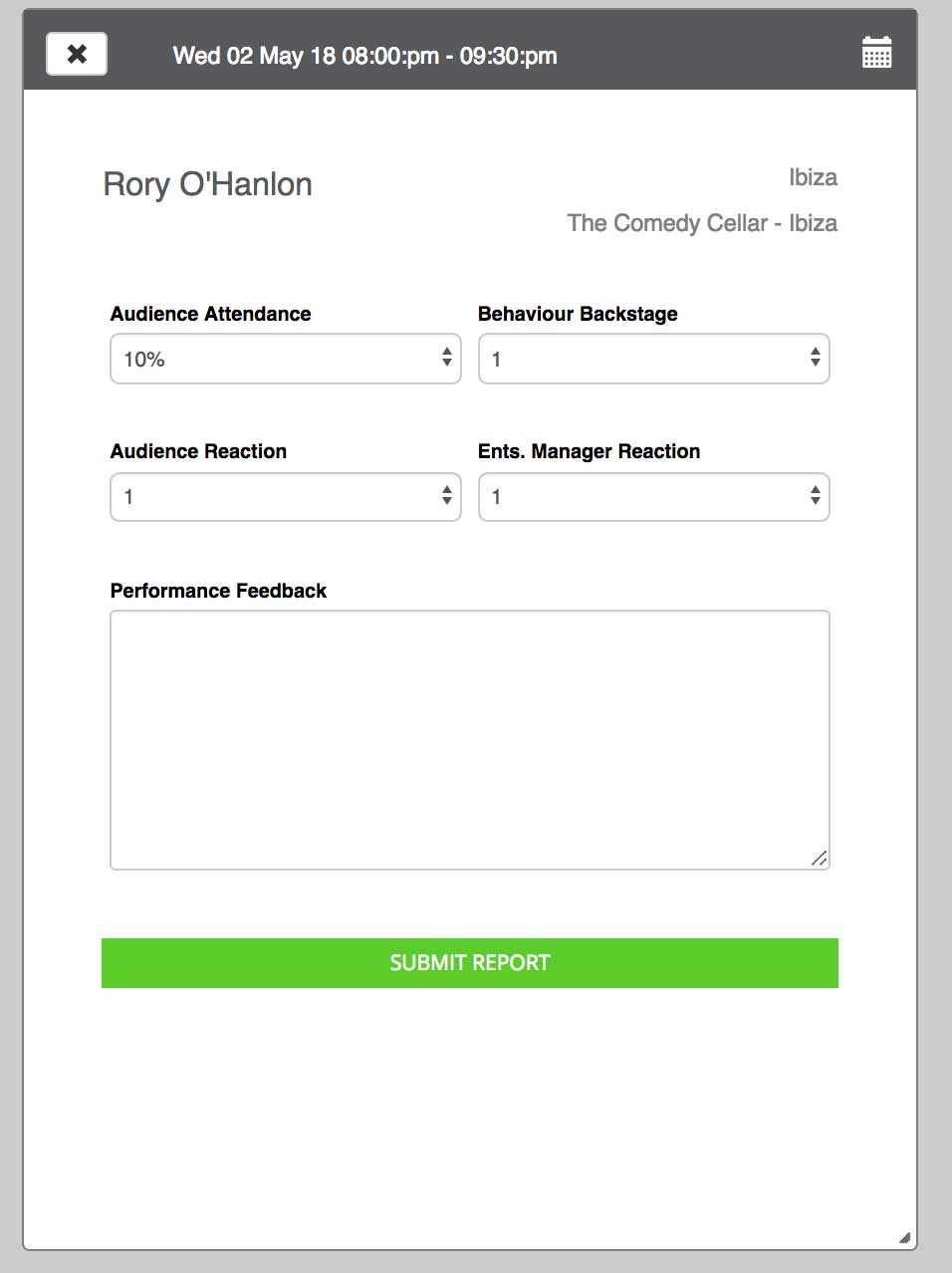
Once the report has been submitted it will be removed from the due reports list, and marked on the Visiting Artistes Planner with a 'R'. (Click the refresh icon in the planner to update the view after completing a report).
Entertainment reports
For certain entertainment events then there will be an event report that will need to be completed for that event. If a report is required then the event will show in the Events Due module
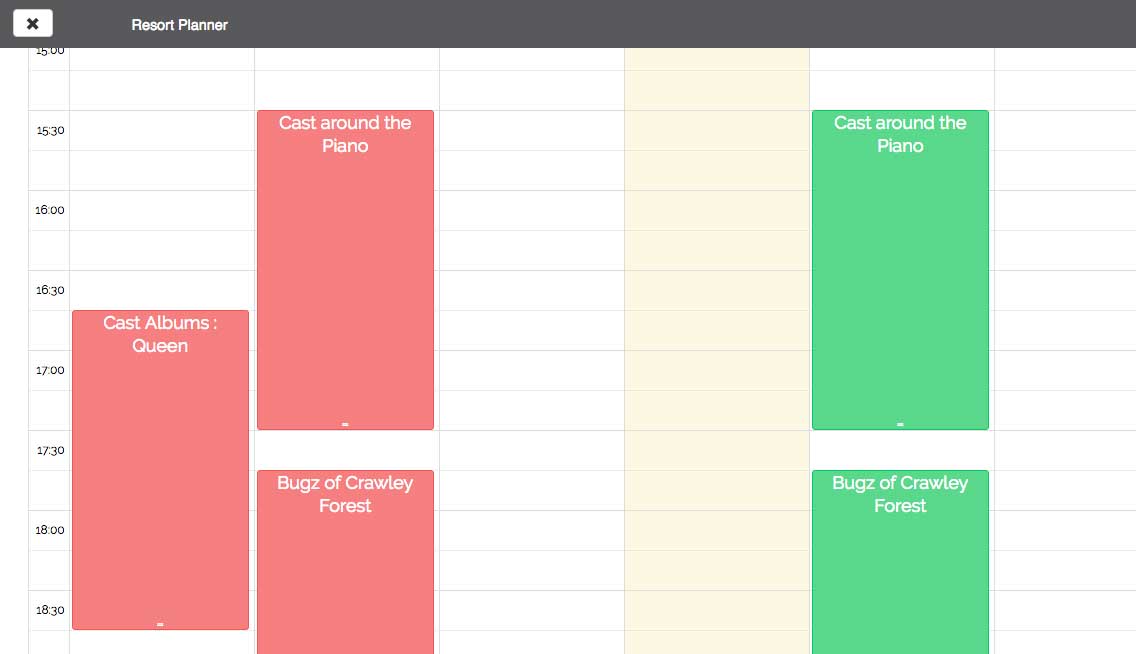
To submit a feedback report either select the event from the Events Due Reports module or click on an entertainment event in the Resort Planner calendar. Once a report is completed then it will show in the Resort Planner with a 'R' after the event name.
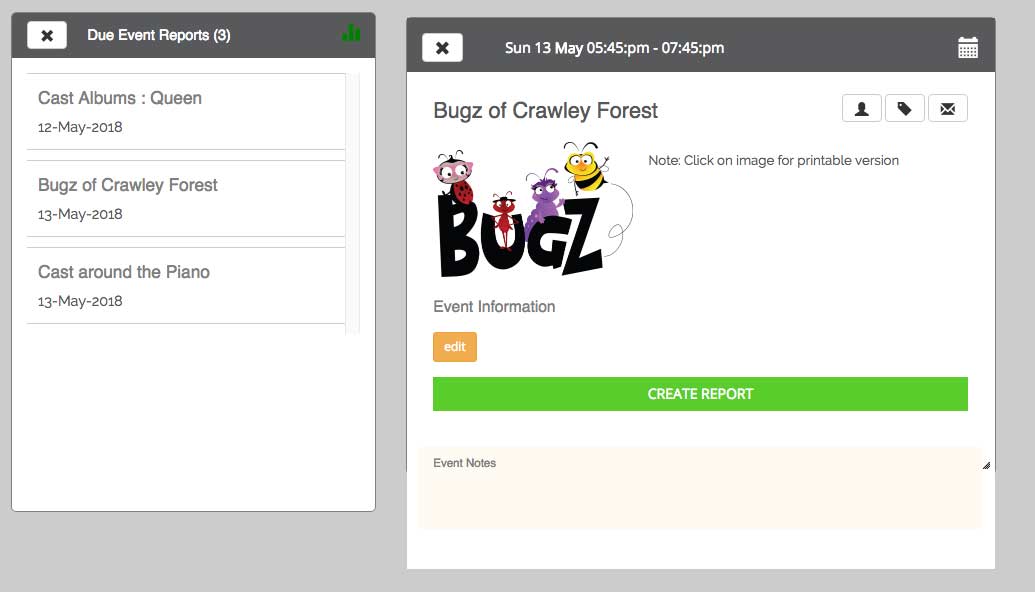
Due entertainment reports and artistes reports are displayed in the Resort Planner as red
Adhoc reports
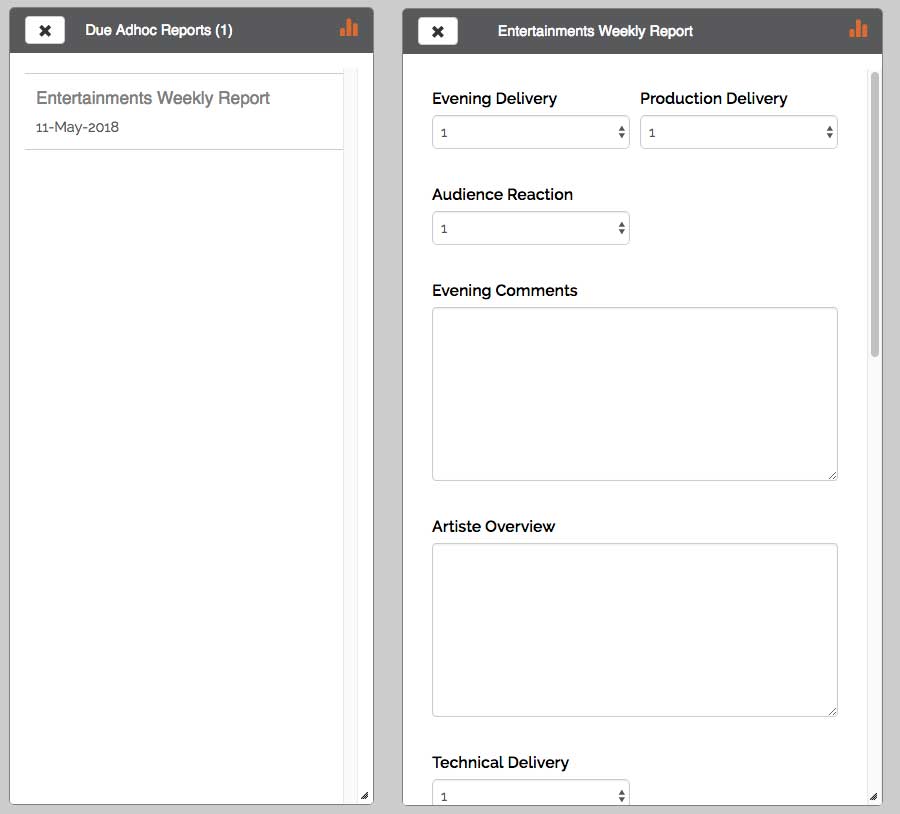
This type report may appear on a monthly, weekly, daily or one-off basis. Such as the Weekly Entertainments Report.
To submit an adhoc report select the report from the Adhoc Due Reports module and complete the displayed report form.
Bookings
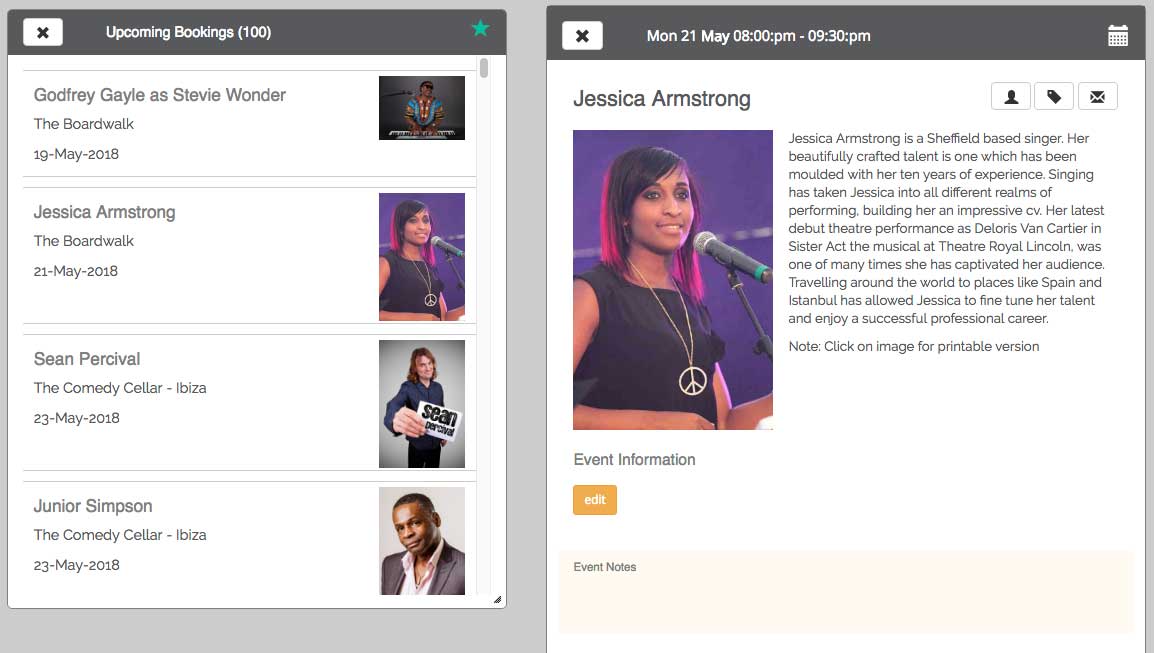
The Bookings module shows your upcoming resort visiting and local artists events. Selecting a booking will show the artiste details and clicking on their image will display this in a seperate browser tab for use on resort.
Planners
Resort Planner
The new updated resort planner allows you to manage all the entertainment events and staff assigned to those events. Visiting artistes will automatically be added to your planner however all other resort events must be created.
To create an event simply click on the timeslot you want and then from the event popup window select the event you want to add.
Note: Please let us know if you would like additional types of local events added - for example other team meetings.
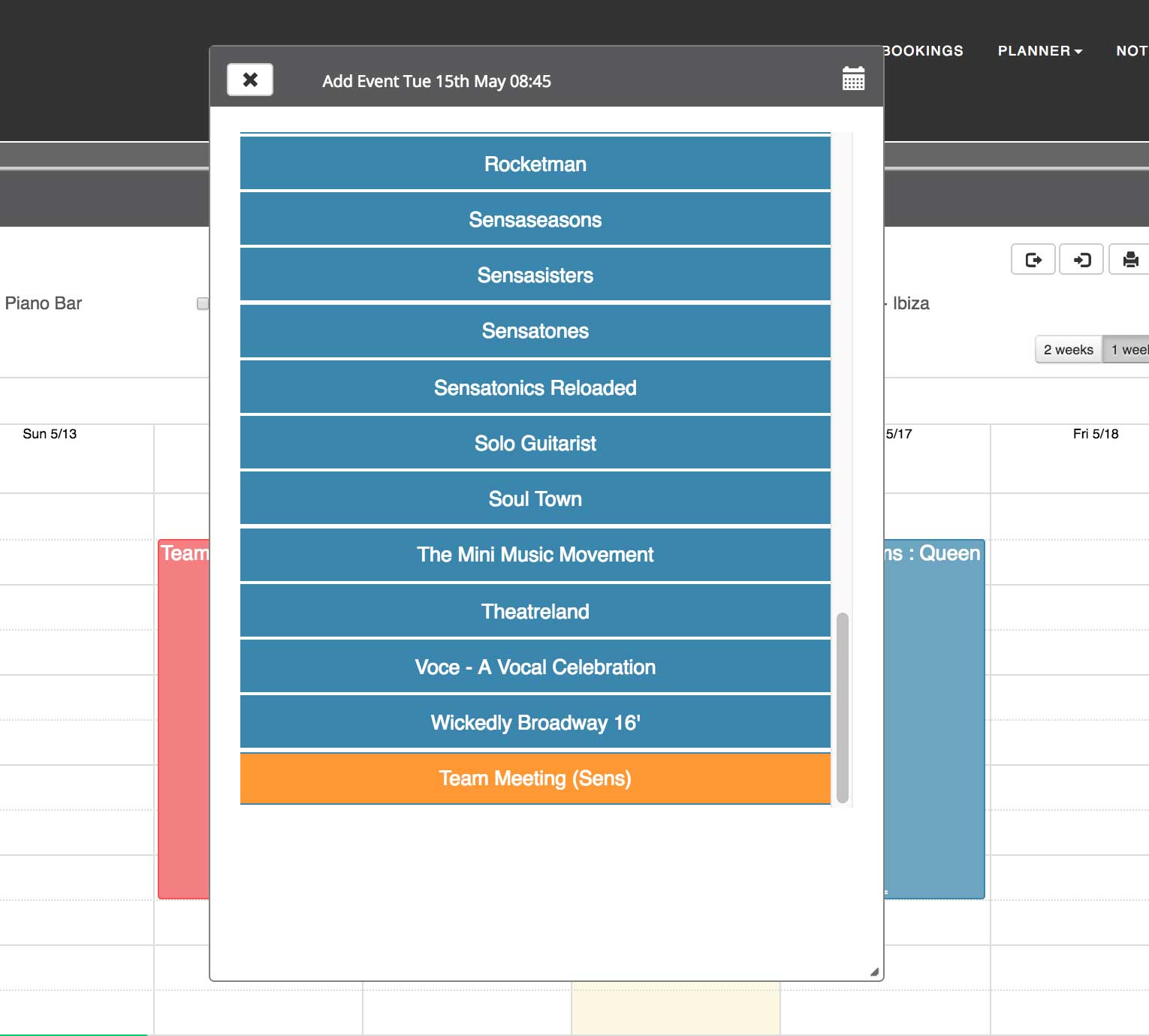
Managing Events in the Planner
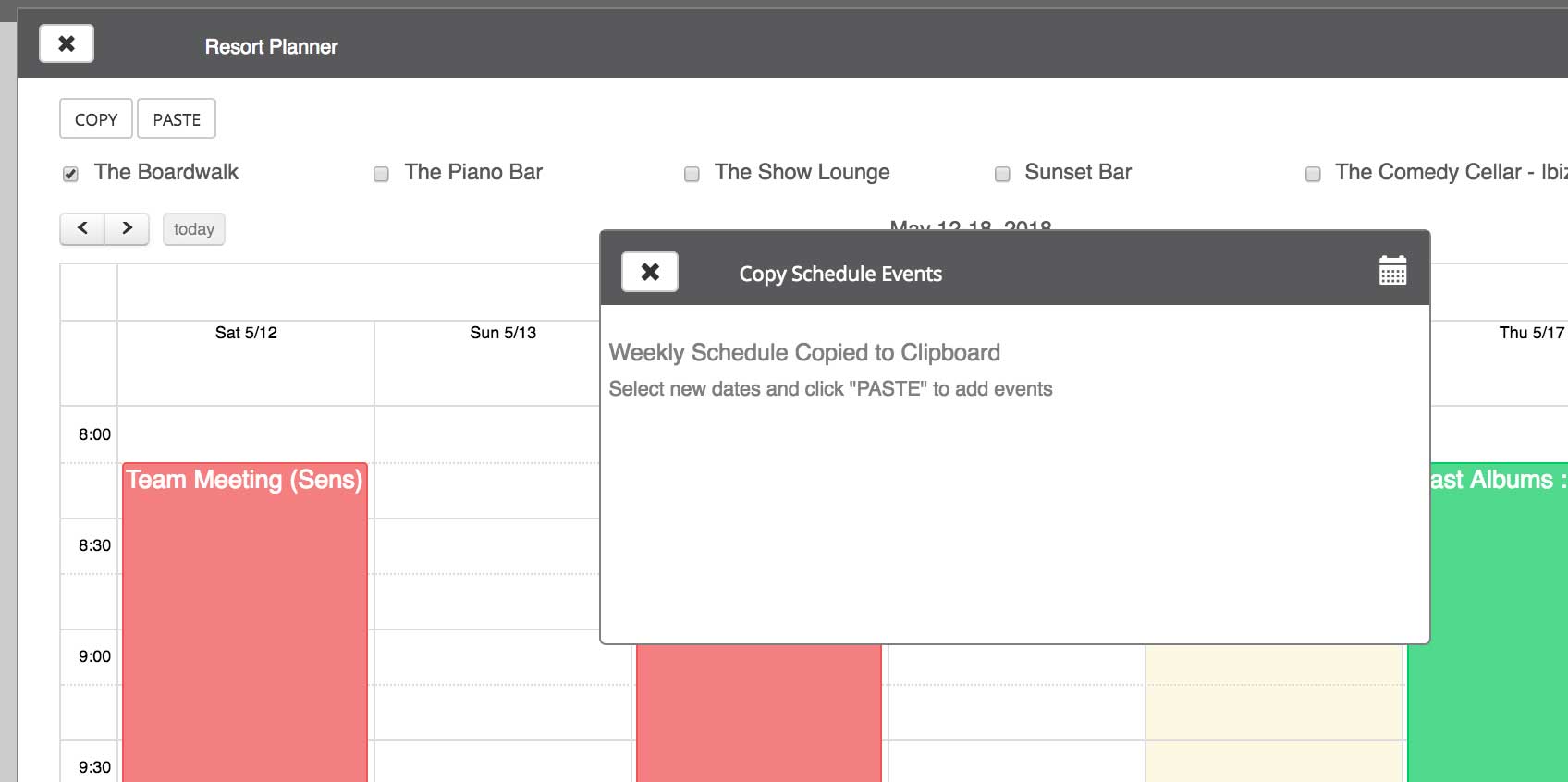
To help in creating and managing your schedules there are a number of useful functions you can use:
Note: Events can only be pasted this way if the new week is clear of events.
- Save current schedule view
- Load a saved schedule view
- Print Schedule
- Clear current schedule view - NOTE: This will delete all visible events in current view (except artiste events)
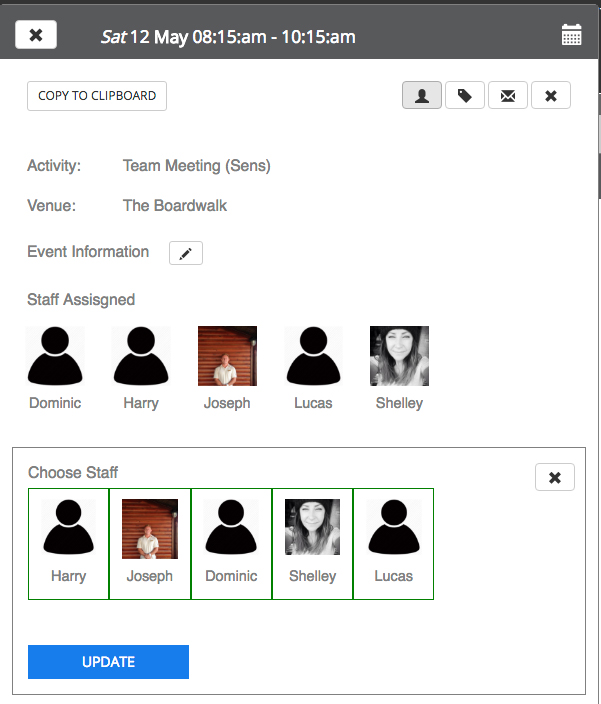
Assigning Staff to Events
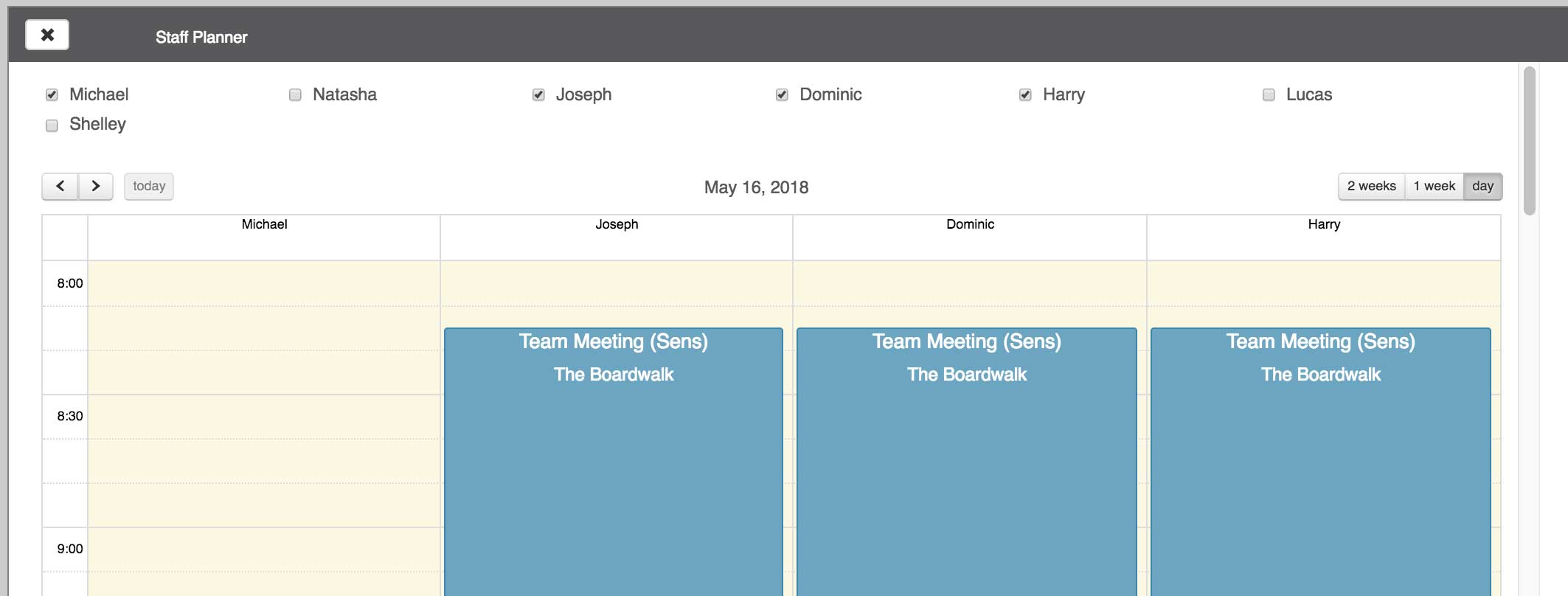
One of new features of tedEMS is the ability to assign staff members to a calendar event. All staff events assignments will also be visible to staff in their new online schedule. The number of scheduled event hours assigned for each staff member can be seen in the users module.
To assign staff to an event click on the staff icon from the event popup window. Click on each staff member to add or remove them from the event, and click UPDATE when finished.
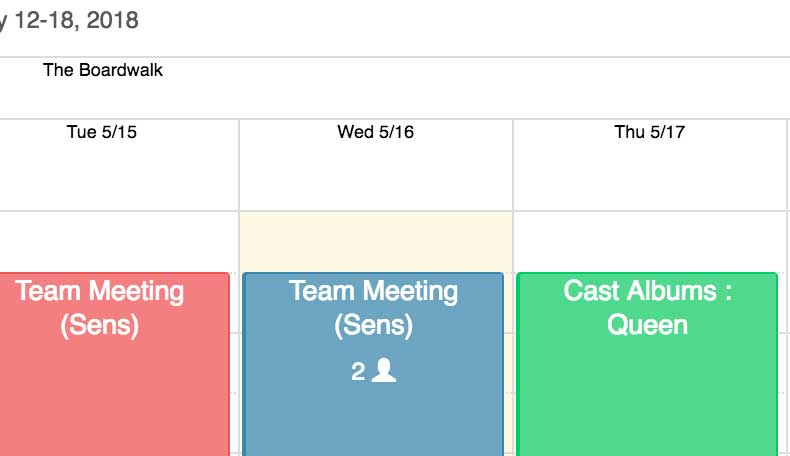
Assigned staff will now show in the event popup window, staff schedule and in the resort planner for the event.
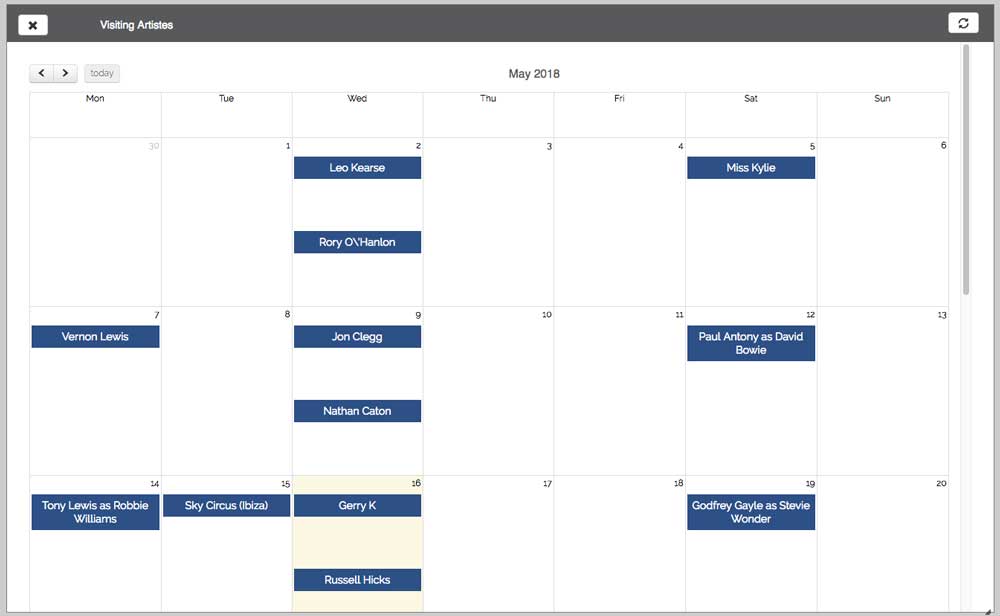
Visiting Artistes
The Visiting Artistes module shows your upcoming resort visiting and local artists events. Selecting a booking will show the artiste details and clicking on their image will display this in a seperate tab for use on resort. You can also submit artiste feedback reports by clicking the artiste event in this calendar.
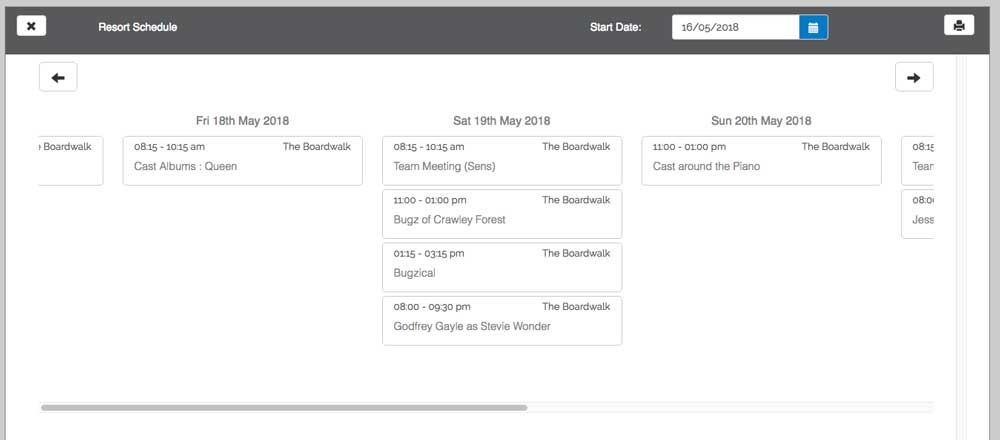
Resort Schedule
This will display all the events schedule for the coming 7 days, defaulting to the current date. The start date can be adjusted by entering a new date in the 'Start Date' box. This schedule is print friendly and by selecting the icon will give a page that can be printed.
Notes
Another new feature of tedEMS is the ability for all staff to be able to add text notes against any event. These are only seen within the resort and can be used as communication between resort staff and with the ents manager. Notes can be added anywhere you see the icon.
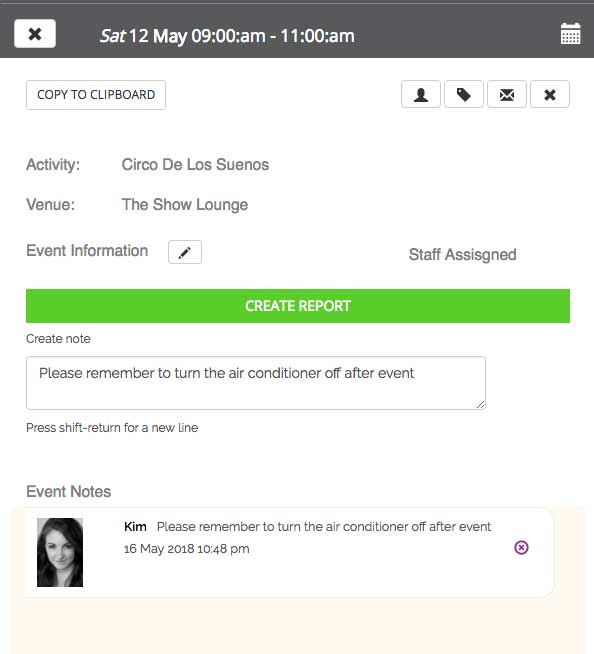
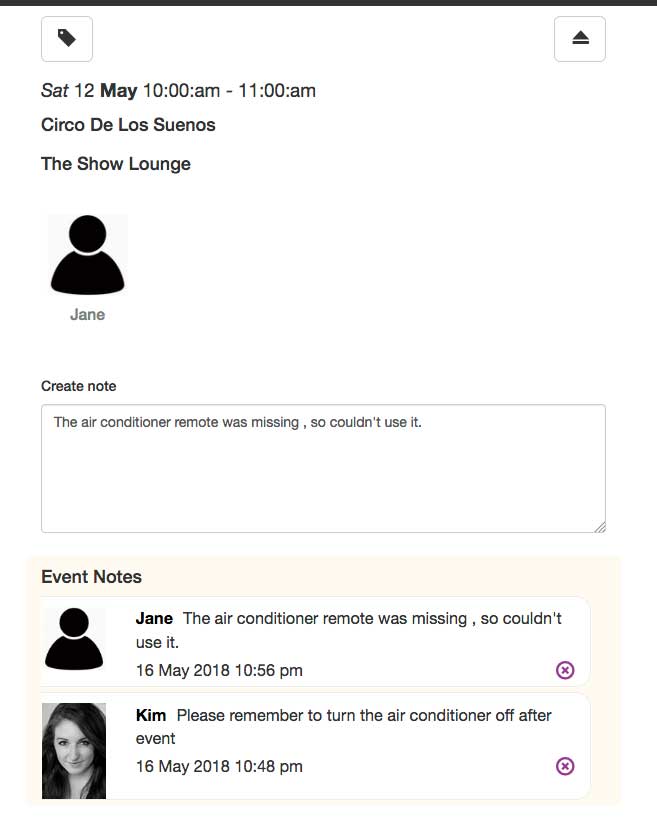
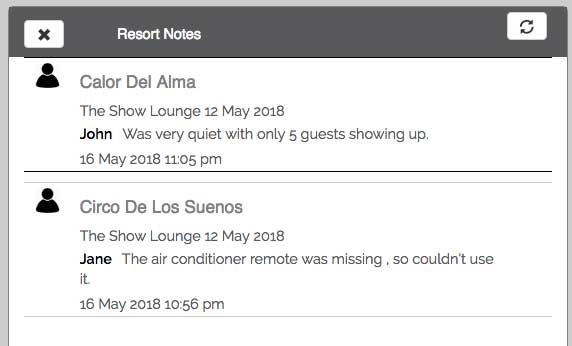
As well as being able to see notes when looking at an event, they are also displayed in the main Notes module on your dashboard. To refresh the notes list then click the icon.
Escalation Notes
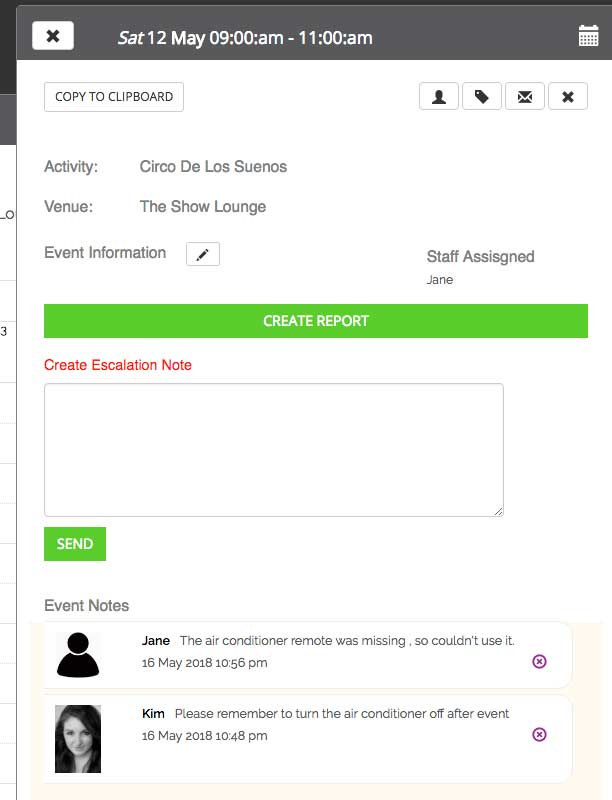
These are similar to the Notes above, however can only be created by the ents manager and are automatically seen by the ted client account manager. They are not seen by any other resort staff, and is an easy method to alert the account manager of a certain issue with an event.
These are created by clicking the icon in the event pop-up window
Users
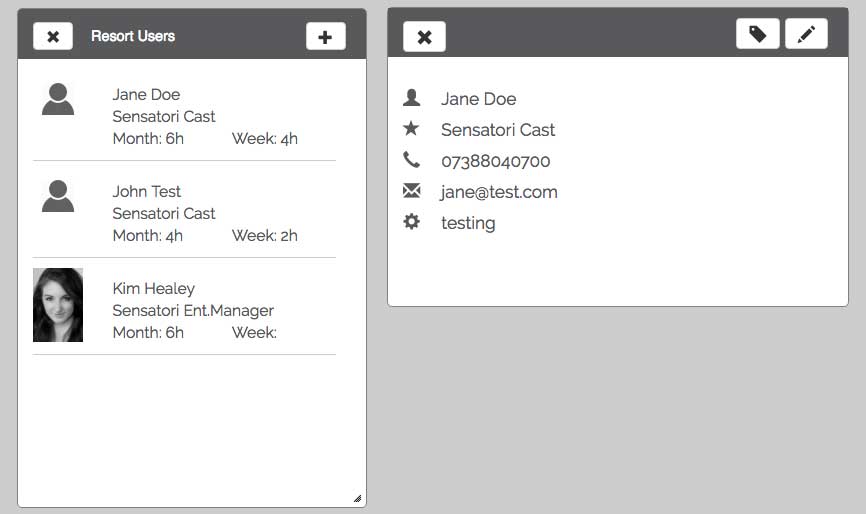
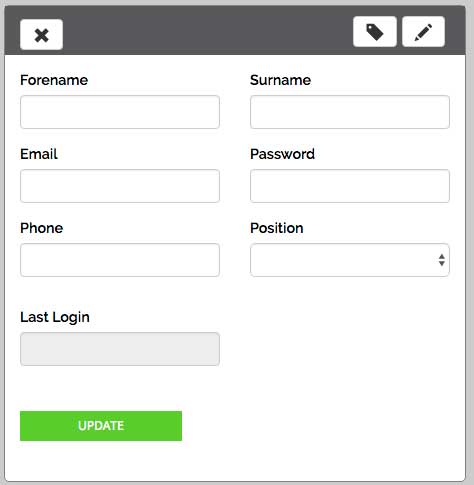
This module shows all the resort tedEMS users and allows you as ent manager to create/edit or delete any of your staff accounts, as well as being able to see how many hours they have been scheduled for in the current month or week. Click the icon to add a new user or select the user to view and click the icon to edit their current account details.
Venues
The venues module alows you to manage your local resort venues to seen within the resort planner. Here you can see and modify specfic venue information that is useful to tedAgency and for handover to another ent manager
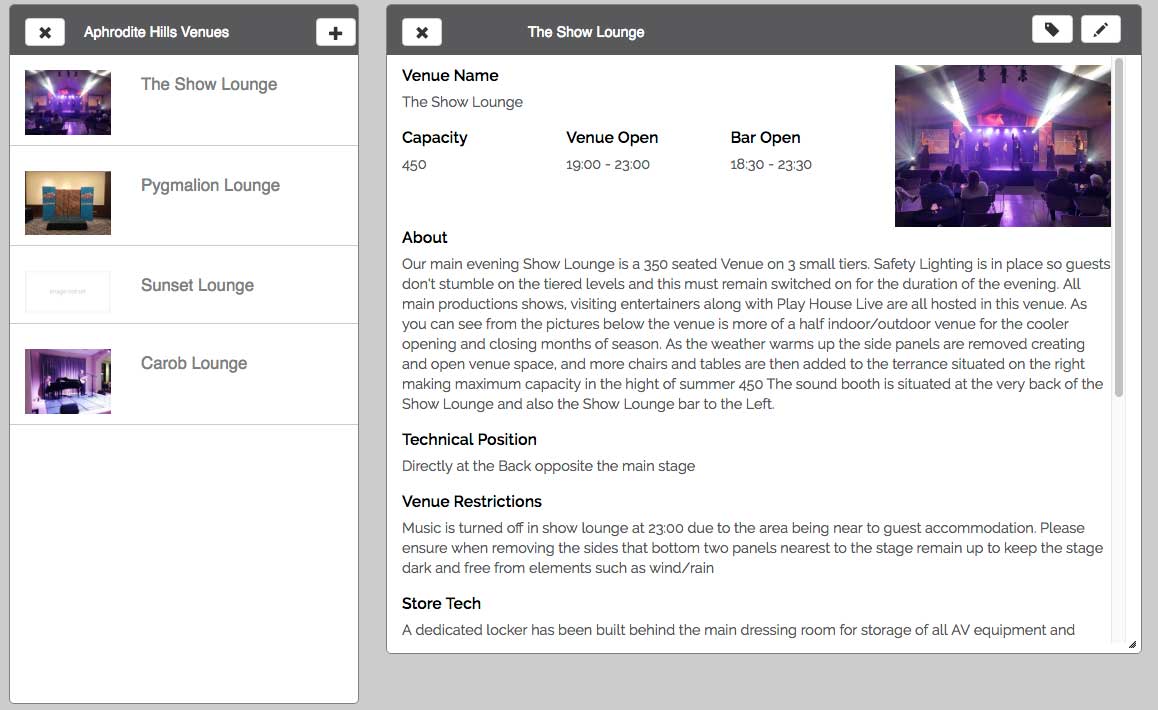
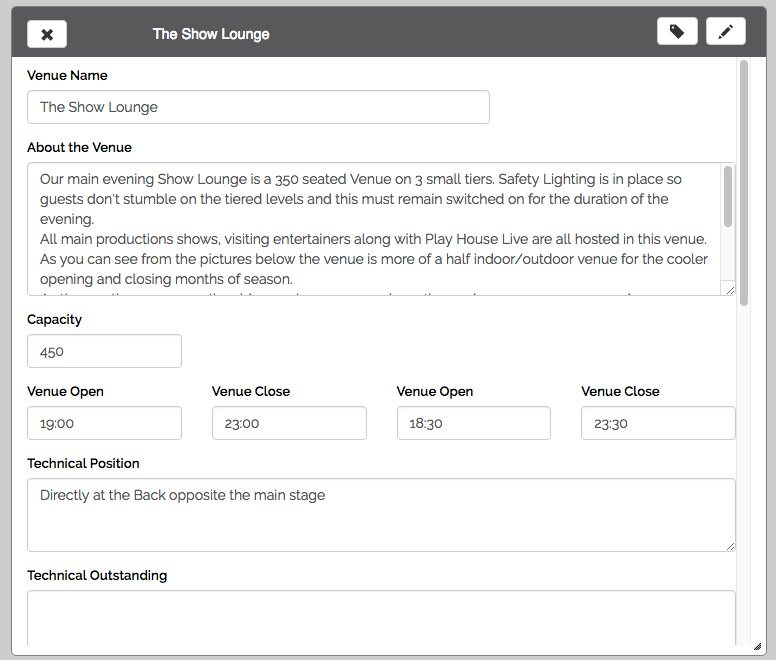
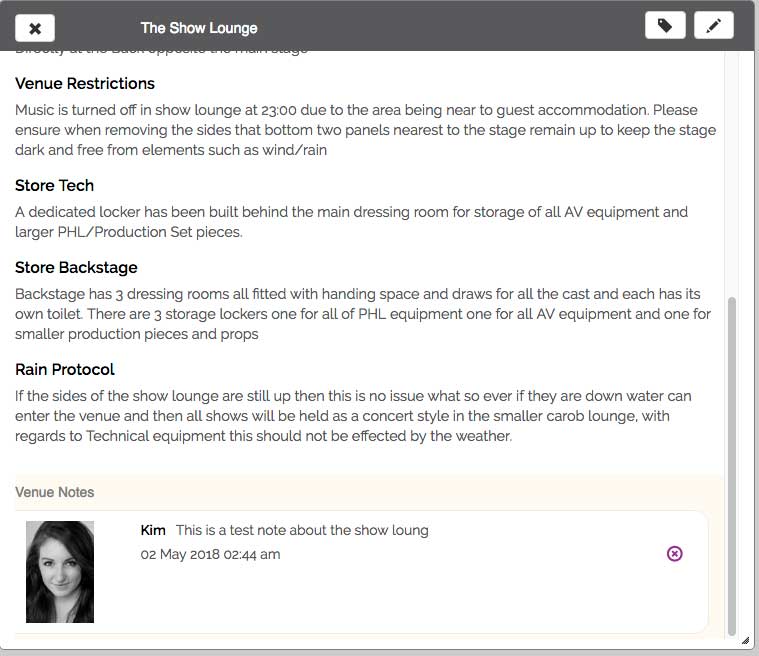
Click the icon to add a new venue or select the venue to view and click the icon to edit that venue. You can also create notes for a venue by clicking the icon.
Note: These notes are only seen by ted account managers and local resort ent managers
Profile
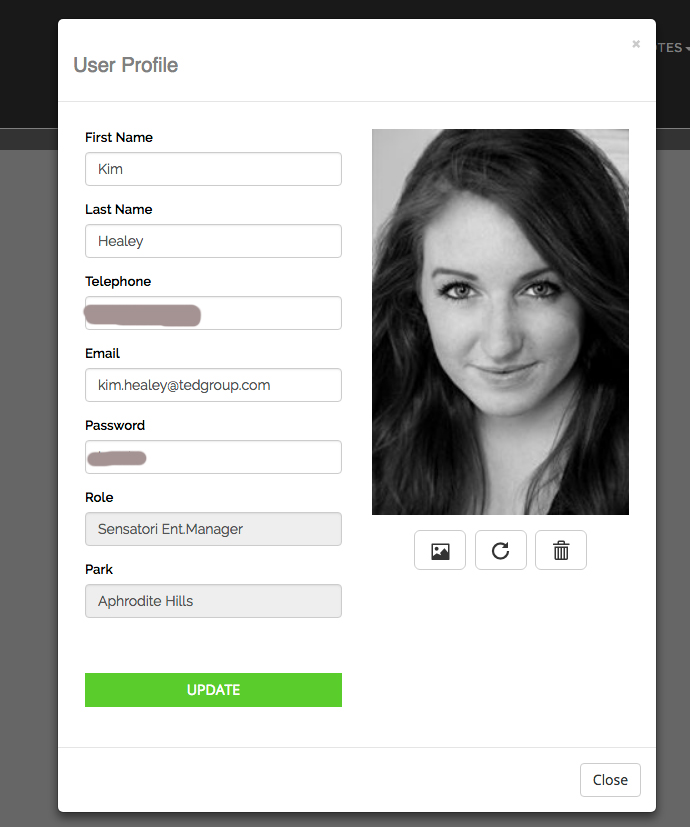
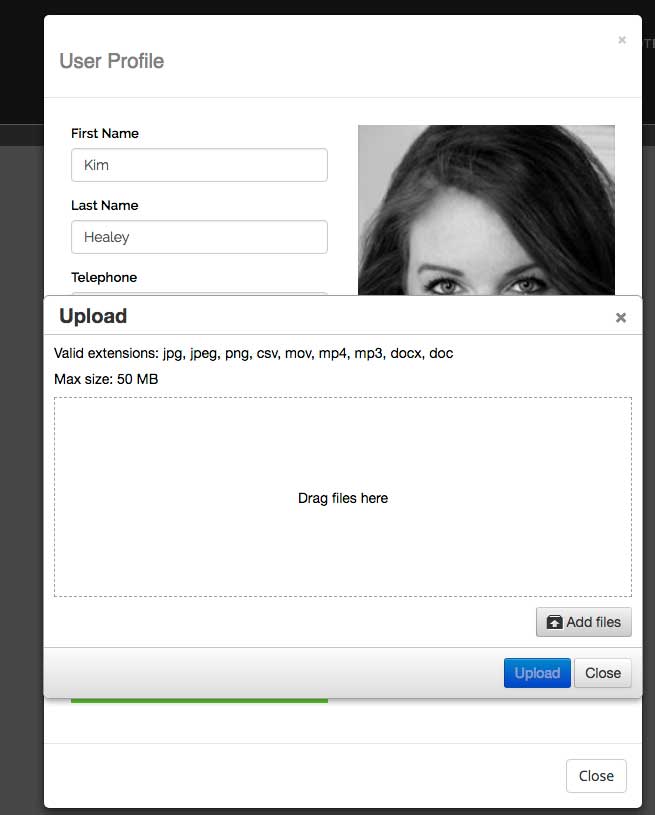
This is your user profile and account for tedEMS - where you can change your password or other contact details and also upload a profile photo to be used on the system by clicking the icon.